Full Screen Resolution With No Guest Additions in VirtualBox
Virtual Box Guest Additions can be a bit of a pain to set up sometimes.
My current PC setup for some reason wouldn’t show a VM in the full resolution.
I went through a lot of post followed loads of instructions with none of them working until I watched this video from ArcoLinux.
There’s a couple of options I’ve never had to configure before but once I did I got a full screen resolution without having to mess around with installing Guest Additions.
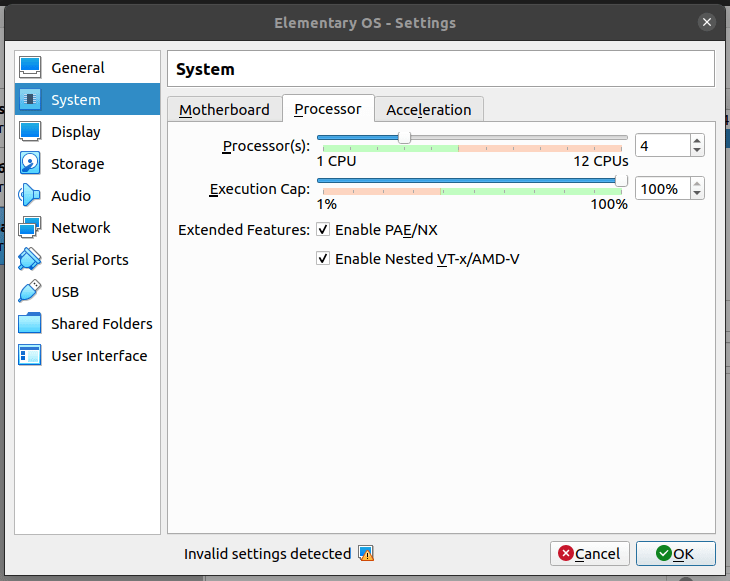
First up is “Enable PAE/NX” then I also checked “Enable Nested VT-x/AMD-V”
Then the display setting pick the “VBoxSVGA” option from the “Graphics Controller” dropdown.
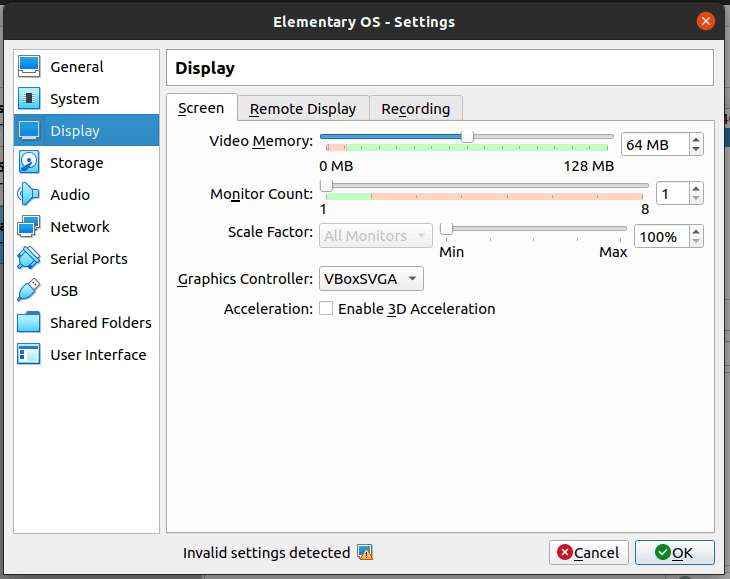
With these setting enabled there’s no need to install the Guest Additions software.
I’ve found that I need only to enable “Enable Nested VT-x/AMD-V”
After reading this post on SuperUser and the accompanying WikiPedia page I decided to disable the “Enable PAE/NX” setting and play around with the settings a bit more and I’ve found that I need only to enable “Enable Nested VT-x/AMD-V”
On Windows and macOS you may need to enable the options through the CLI, instructions on that can be found in this video.
There's a reactions leaderboard you can check out too.
Sign up for the newsletter
Want to keep up to date with what I'm working on?
Join other developers and sign up for the newsletter.
I care about the protection of your data. Read the Privacy Policy for more info.